How to Update NetMirror to the Latest Version 2 Easy setps
Because NetMirror is not on the Google Play Store, it does not update itself the way store apps do. That surprises many users who wonder why they are stuck on an old build. Learning how to update NetMirror is easy once you know the two routes, and this guide covers both, how to check your version, why the NetMirror latest version matters, and how to update without losing your watchlist.
Before trying to update, you can learn more about the original app in our NetMirror APK guide.
First, Check Which Version You Have
Before updating, confirm what you are running so you know whether you even need to.
- Open NetMirror and go to Settings or the About section.
- Look for the version number displayed there.
- Compare it with the latest version listed on the site you downloaded from.
If the numbers match, you are already current and can stop here. If yours is lower, use one of the two methods below.
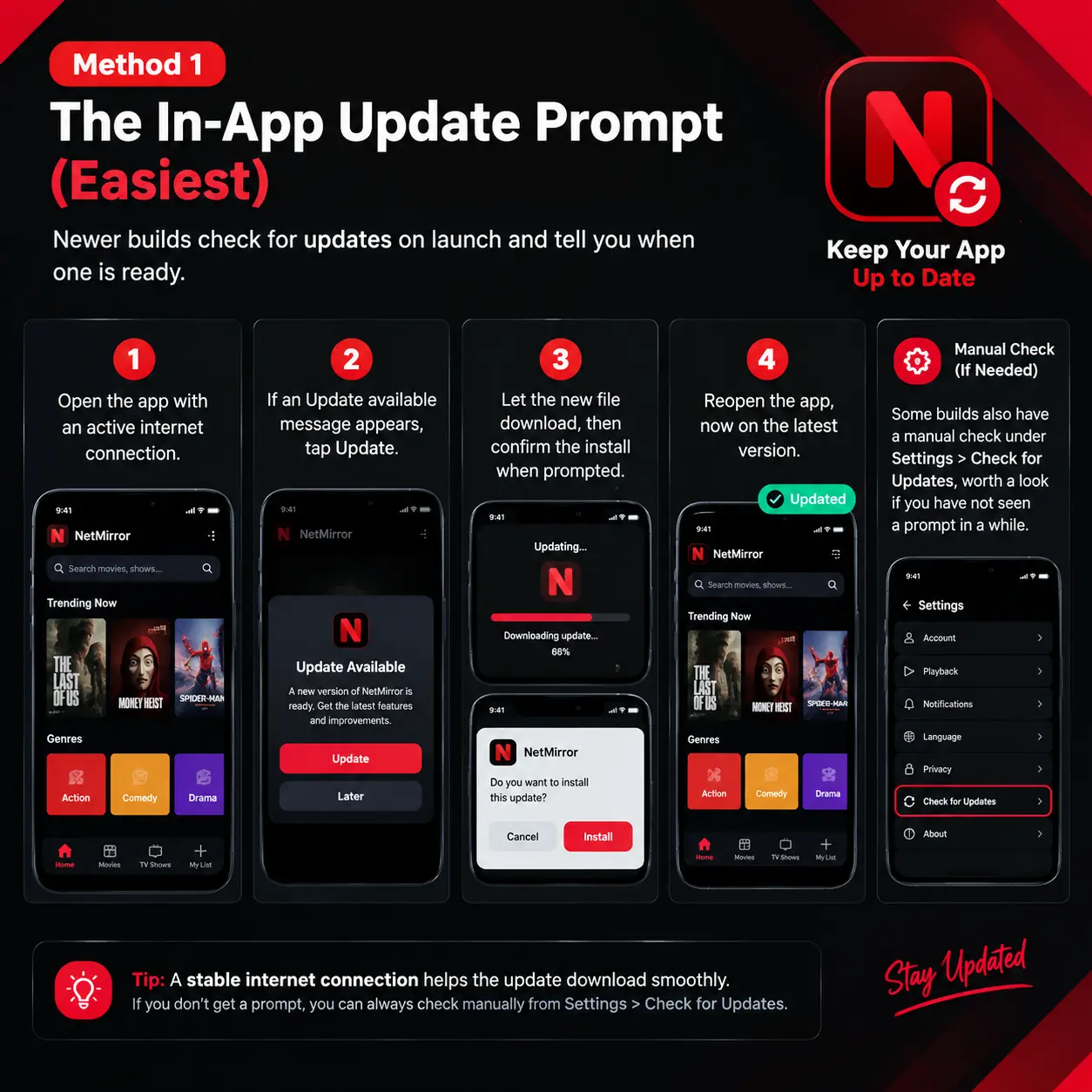
Method 1: The In-App Update Prompt (Easiest)
Newer builds check for updates on launch and tell you when one is ready.
- Open the app with an active internet connection.
- If an Update available message appears, tap Update.
- Let the new file download, then confirm the install when prompted.
- Reopen the app, now on the latest version.
Some builds also have a manual check under Settings > Check for Updates, worth a look if you have not seen a prompt in a while.
Method 2: Download a Fresh APK (Always Works)
If your build is too old to show a prompt, or the prompt never appears, install the newest APK over the top. This is the reliable NetMirror APK update route.
- Enable Install Unknown Apps for your browser or file manager, if it is not already on.
- Download the latest NetMirror APK from the source you trust.
- Open the file and tap Install. Android installs it as an update, keeping the existing app in place.
- Open NetMirror and confirm the new version in Settings.
You usually do not need to uninstall the old version first. Installing the newer APK on top updates it and preserves your data, the exception being a very old build, which may ask you to uninstall before it accepts the new one.
If you’re interested in earlier releases, take a look at our guide to older NetMirror versions.
Two Ways to Update, Compared
| In-app prompt | Fresh APK | |
|---|---|---|
| Works on old builds | Not always | Always |
| Speed | Fastest | A few extra steps |
| Keeps your data | Yes | Yes |
| Needs Unknown Sources | No | Yes |
Will Updating Erase My Watchlist and Downloads?
Installing a newer APK over your current one normally keeps everything: your watchlist, Continue Watching progress, and saved downloads stay in place. To be safe before a big update, note down any must-keep titles. If you are signed in, your watchlist is tied to the account and returns after you log back in, even in the rare case a build resets local data.
Why Keeping NetMirror Updated Is Worth It
Updating is not just about new buttons. Each release tends to bring:
- Security patches that close loopholes in older builds, which matters more for a sideloaded app.
- Server fixes so titles that stopped loading on an old version start working again.
- Fresh content and features, such as improved search and smoother playback.
- Bug fixes for crashes, buffering, and subtitle glitches.
An out-of-date build slowly falls out of sync with the services it relies on, so updating is the single best fix when content mysteriously stops playing.
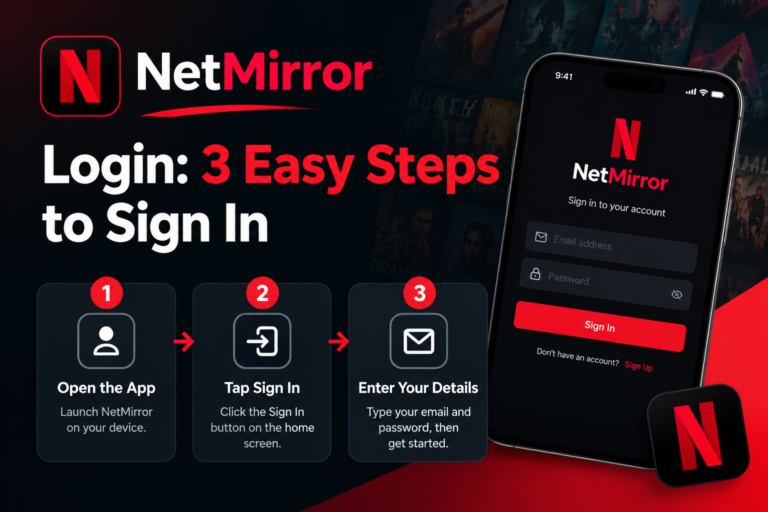
Need help accessing your account? Our NetMirror login guide explains the sign-in process.”
How Often Should You update netmirror?
There is no fixed schedule, since NetMirror has no official changelog and versions are not always documented consistently. A sensible rhythm is to update when the app prompts you, when titles start failing to load, or every few weeks if you use it daily. Chasing every minor build is unnecessary; staying within a version or two of the current one is enough for stability and security.
Final Word
NetMirror will not update on its own, so you drive it: check your version in Settings, then either accept the in-app prompt or install a fresh APK over the top. Updating over the existing app keeps your watchlist and downloads, and it is the surest fix when an old build stops loading titles. This guide is for information only, and what you stream remains subject to local laws and licensing.
Frequently Asked Questions
Why doesn’t update netmirror automatically?
It is not on the Play Store, so Google cannot push updates. You update through the in-app prompt or by installing a fresh APK.
How do I know if I have the latest version?
Check the version number in the app’s Settings or About screen and compare it with the latest listed on your download source.
Do I need to uninstall the old version first?
Usually no. Installing the new APK over the old one updates it and keeps your data. Only a very old build may require uninstalling first.
Will I lose my downloads after updating?
Normally no. Updating over the top preserves downloads and your watchlist, and signing in also backs up your watchlist.
The update keeps failing. What now?
Make sure Unknown Sources is enabled, you have free storage, and the file downloaded fully, then reinstall.
Is it safe to update from an in-app prompt?
Yes, when you installed the app from a trusted source to begin with. If in doubt, ignore the prompt and download the fresh APK from that same source instead.