How to Use NetMirror: Complete Beginner Guide (2026)
You have installed the app, opened it, and now a wall of posters is staring back at you. If you are wondering how to use NetMirror beyond just pressing Play, this beginner-friendly NetMirror guide walks through the whole app the way a new user actually meets it: the home feed, searching, building a watchlist, controlling playback, and the small settings that make a big difference.
Getting Around the Home Screen
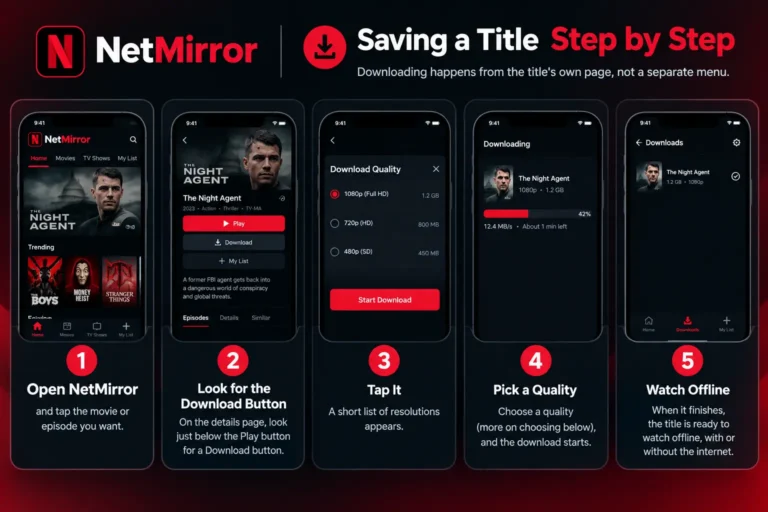
When you first open NetMirror, you land on the home feed, a set of scrollable rows arranged by theme. Expect sections like Trending, New Releases, and genre or platform rows such as Hollywood, Asian Dramas, or specific OTT libraries. Scrolling down is the browsing mindset: you are wandering the shelves. Tapping any poster opens that title’s details page, where you find the Play button, a short synopsis, and usually the Download option just beneath it.
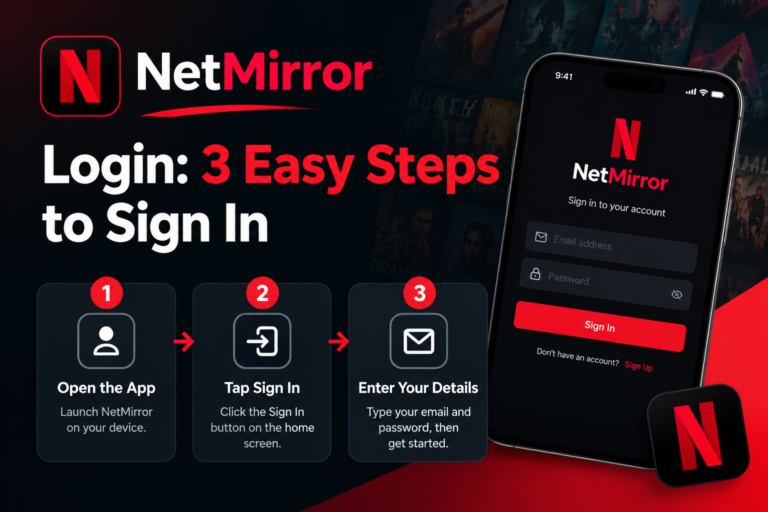
Most builds need no account to start, so you can begin exploring the moment the app opens. Using the app on your phone? See our guide to NetMirror on Android for more setup and usage tips.
Finding a Specific Title
When you already know what you want, searching beats scrolling.
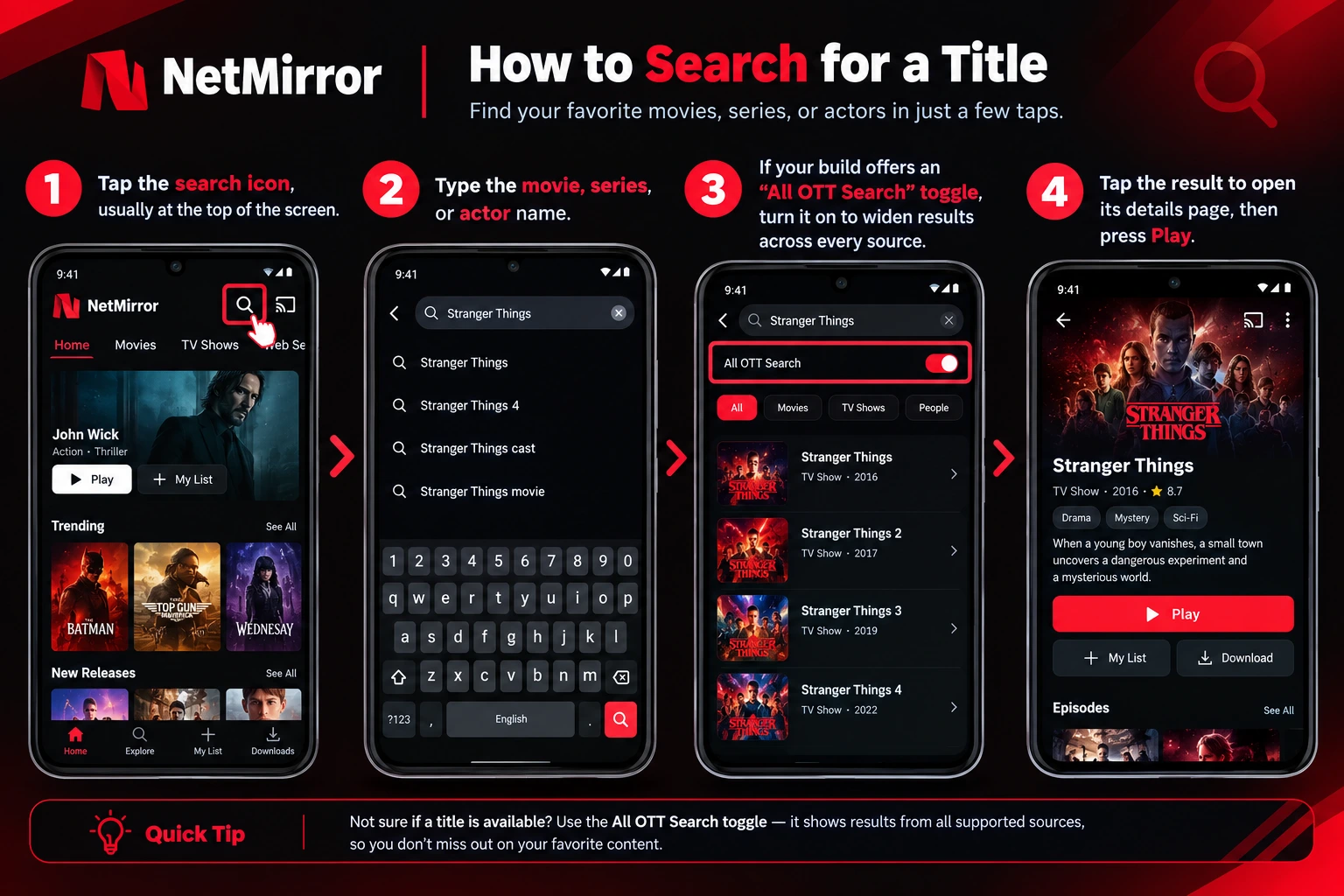
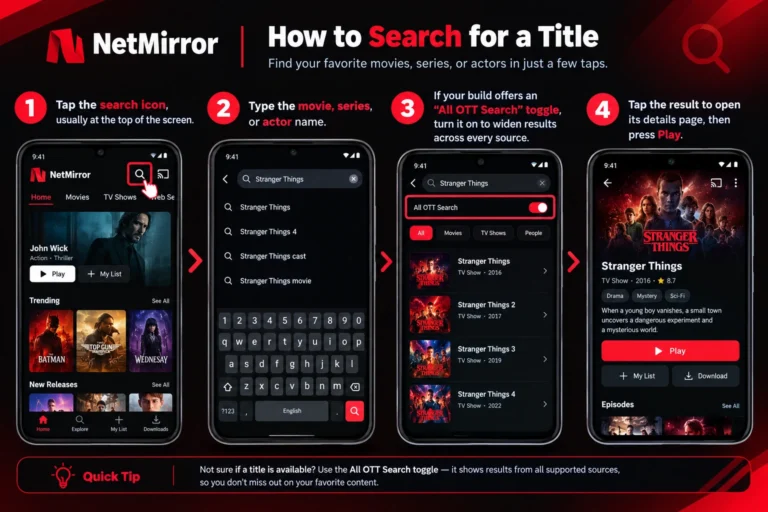
- Tap the search icon, usually at the top of the screen.
- Type the movie, series, or actor name.
- If your build offers an “All OTT Search” toggle, turn it on to widen results across every source.
- Tap the result to open its details page, then press Play.
Search is also the fastest way to check whether a title exists on the app at all before you spend time browsing for it.
Building and Using a Watchlist
The watchlist is the feature that turns casual browsing into a proper viewing routine. On a title’s page, tap the “+” or bookmark icon to save it for later. Everything you save gathers in one place, reached from the menu or home screen, so you never lose that film someone recommended. If you are signed in, the watchlist syncs across sessions and devices, which is the main reason to bother with an account at all. Pair it with the Continue Watching row, which remembers exactly where you stopped, and you have a personal queue that picks up wherever you left off.
Planning to watch on a bigger screen? Check our NetMirror TV setup guide for the basic steps.
Controlling Playback Like a Pro
Once a video is playing, tap the screen once to reveal the player controls. From here you can:
- Pause, skip, and scrub through the timeline.
- Adjust brightness and volume with vertical swipes on many builds.
- Open the gear (Settings) icon to change subtitle language, subtitle style, audio track, and video quality.
- Go full screen and lock the screen to avoid accidental touches.
Setting your preferred resolution here matters: Auto adapts to your connection, but choosing 720p manually gives steadier playback on a weaker network.
First-Time Setup Worth Doing
A couple of minutes of setup pays off every session afterwards.
| Setting | Why it helps |
|---|---|
| Default resolution | Balances picture quality against your connection speed |
| Subtitle language and size | Sets captions once so later titles open ready |
| Parental control (if available) | Hides mature content on a shared or family device |
| Watchlist sign-in | Syncs your saved titles across devices |
Getting the Best Experience
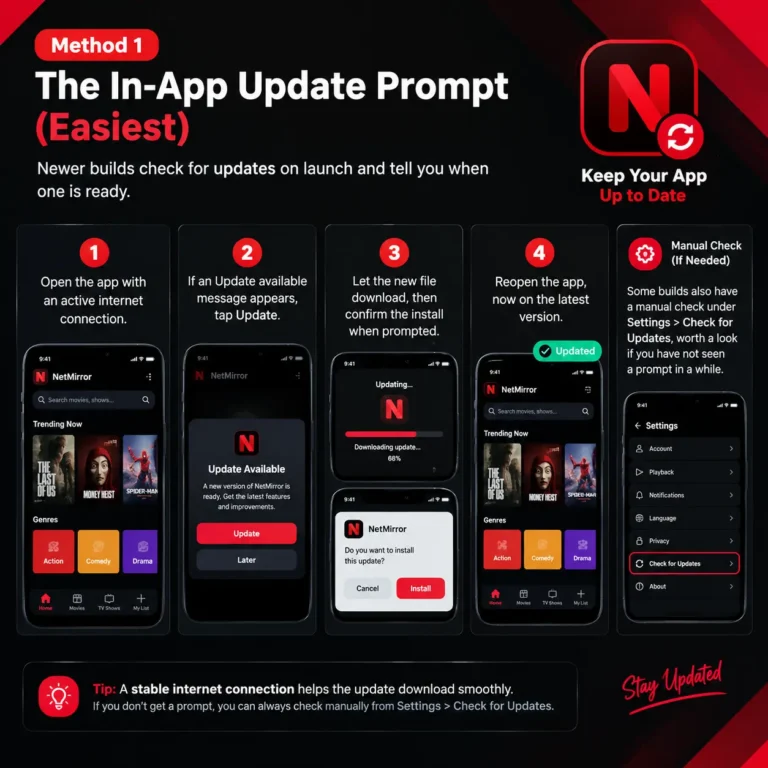
A few habits separate a smooth experience from a frustrating one. Stream on Wi-Fi where you can, and download titles at home before a trip so you can watch offline without buffering. Keep the app updated, since new builds fix bugs and restore titles that stopped loading. Explore beyond the first two rows, because the app’s depth lives further down the feed in genre and regional sections. And if something will not play, remember it is often the source rather than your phone, so trying a different title is a quick way to tell the difference.
Common Beginner Questions Answered in the App
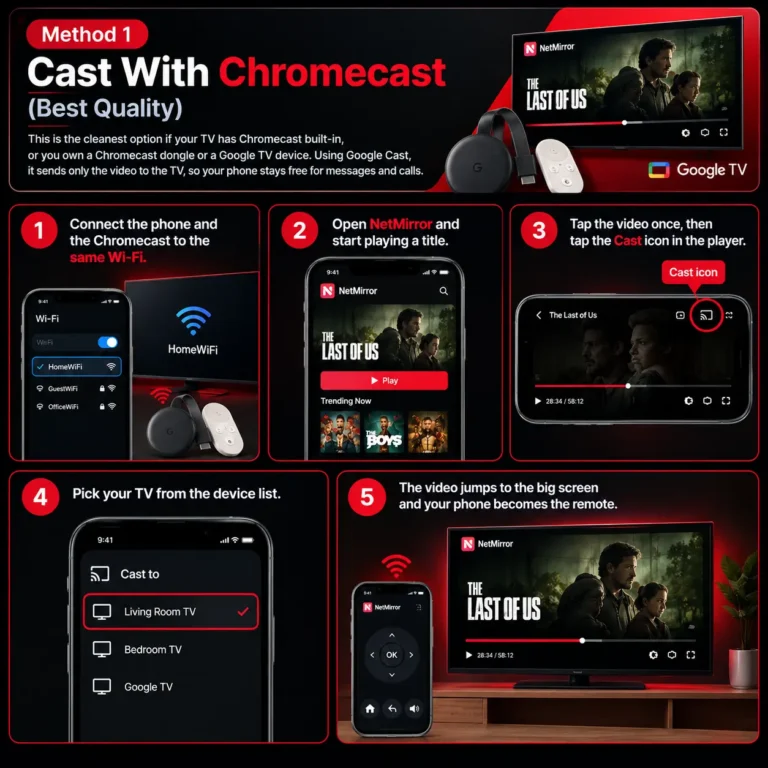
New users often miss features that are already there. Subtitles and audio language both live behind the player’s gear icon, not a separate menu. Offline downloads sit under the Play button on each title, not in a global downloads screen. And casting to a TV is the small screen-cast icon inside the player. Knowing where these three live removes most early confusion.
If you are new to the platform, our NetMirror streaming guide covers the main ways to find and watch content.
Tips to Discover More Content
Once the basics feel natural, a few tricks surface far more to watch. Use the genre and category filters rather than only the home rows, since the deepest parts of the library rarely appear on the first screen. When you finish something you enjoyed, check the “More Like This” style suggestions on its details page, which point you toward similar titles quickly. Searching by an actor or director, not just a title, uncovers work you did not know was there. And revisiting the Trending and New Releases rows every week keeps your watchlist fresh, because the library changes often as new content is added.
Final Word
Learning how to use NetMirror takes about ten minutes: browse the home feed, search when you know what you want, save titles to a watchlist, and use the player’s gear icon for subtitles, audio, and quality. Do the quick first-time setup, lean on Wi-Fi and downloads, and keep the app updated, and the experience stays smooth. This walkthrough is offered for guidance only, and the content you watch remains bound by local laws and licensing.
Frequently Asked Questions
Do I need an account to use NetMirror?
On most builds, no. You can browse and watch immediately. An account mainly syncs your watchlist across devices.
How do I search for a specific movie?
Tap the search icon, type the title, and enable the All OTT Search toggle if your build has one to widen the results.
Where do I change subtitles and quality?
Tap the screen during playback, then the gear icon, where subtitle, audio, and resolution options all live.
How do I save something to watch later?
Open the title and tap the “+” or bookmark icon. Saved titles appear in your watchlist.
Why do some titles not play?
Usually the source server for that title is busy or offline, not your device. Try another title or come back later.