Cast NetMirror to TV: 3 Easy Method to Watch
Watching on a phone is fine, but a 55-inch screen is better. There are three reliable ways to cast NetMirror to TV from your phone, and the right one depends on your television. This guide walks through each method, tells you which TVs it suits, and fixes the “my TV isn’t showing up” problem that trips most people up.
Before You Start: The One Rule That Decides Everything
Both devices must be on the same Wi-Fi network. Chromecast casting and screen mirroring both work by talking phone-to-TV over your home network, so if your phone sits on the 5 GHz band and the TV on 2.4 GHz from the same router, they sometimes cannot see each other. When in doubt, put both on the identical network name.
Looking for the latest NetMirror APP? Visit our main guide for the latest version, installation steps, and device compatibility.
Method 1: Cast With Chromecast (Best Quality)
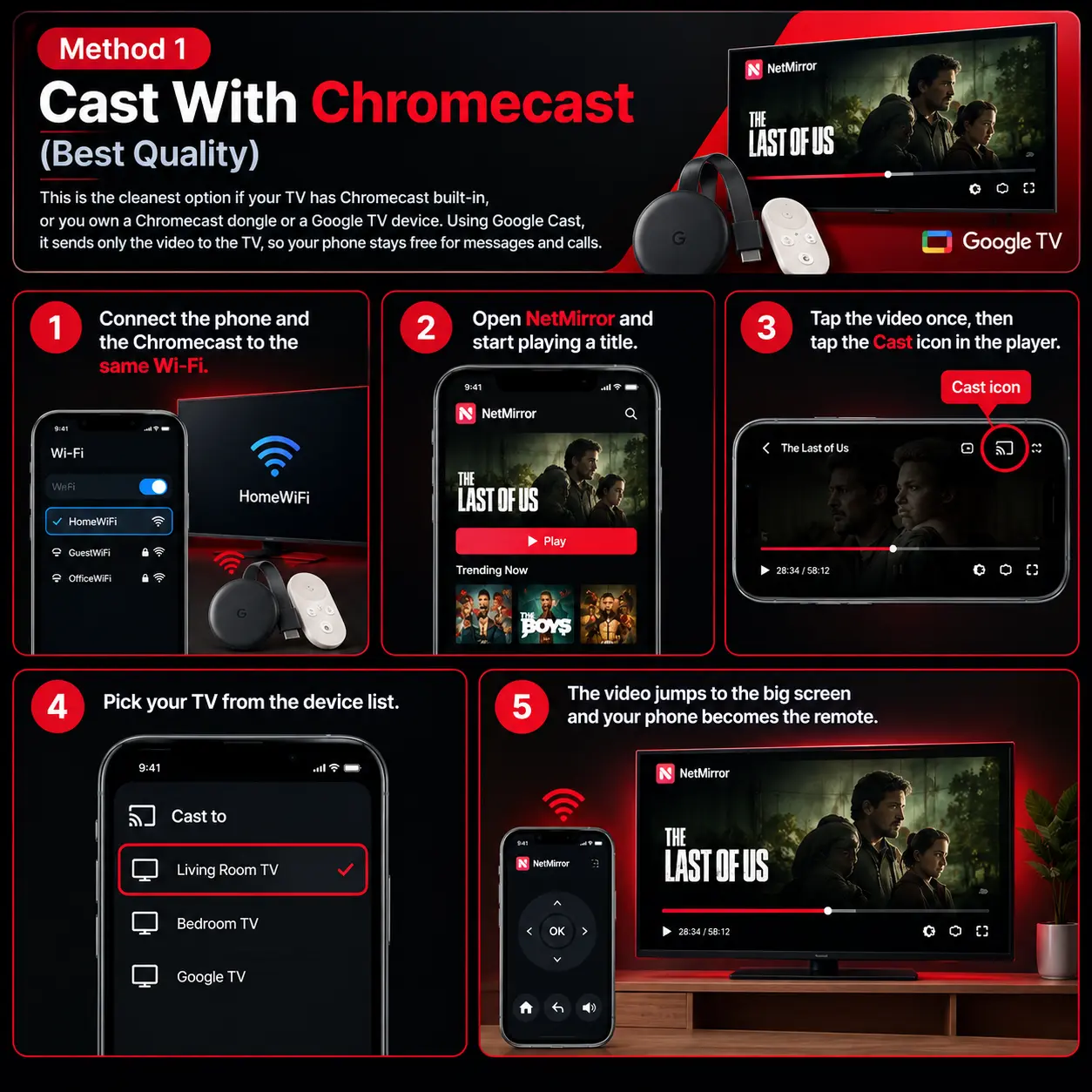
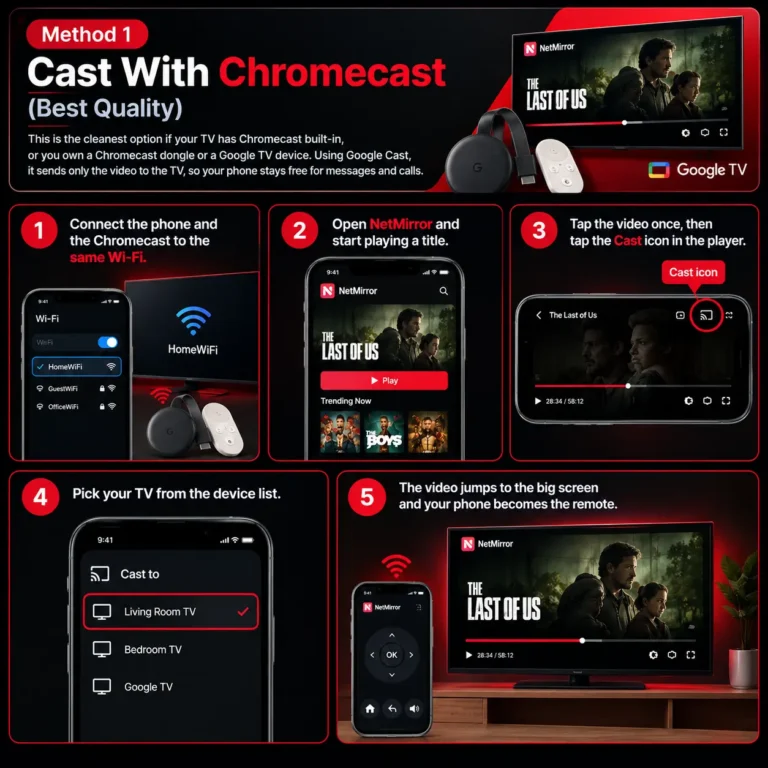
This is the cleanest option if your TV has Chromecast built-in, or you own a Chromecast dongle or a Google TV device. Using Google Cast, it sends only the video to the TV, so your phone stays free for messages and calls.
- Connect the phone and the Chromecast to the same Wi-Fi.
- Open NetMirror and start playing a title.
- Tap the video once, then tap the Cast icon in the player.
- Pick your TV from the device list.
- The video jumps to the big screen and your phone becomes the remote.
Method 2: Screen Mirroring (Works Without Chromecast)
If you have no Chromecast, mirror the whole phone screen instead. This suits Samsung (Smart View) and LG (Screen Share) televisions, which run Tizen and webOS and cannot install the app directly. Many Android phones use the Miracast standard for this.
- Connect both devices to the same Wi-Fi.
- Open the quick-settings panel on your phone and tap Smart View, Screen Cast, or Screen Mirroring.
- Choose your TV from the list and accept the prompt on the TV.
- Open NetMirror and play. Everything on your phone now appears on the TV.
Because mirroring shows your entire screen, silence notifications first for an uninterrupted view.
Method 3: Use the TV’s Own Browser
If casting is unreliable on your network, skip the phone entirely. Most smart TVs and the Fire TV Stick include a web browser (Fire TV uses the Silk browser). Open it, go to the NetMirror web version, and play directly on the TV. This avoids network handshakes altogether and is handy on hotel or shared TVs where you cannot install anything.
If you want to watch NetMirror without installing the app, check our NetMirror Web guide for simple browser-based access.
Which Method Fits cast netmirror to tv?
| Your TV / device | Best method |
|---|---|
| Chromecast, Google TV, Android TV | Method 1 (Cast) |
| Samsung (Tizen), LG (webOS) | Method 2 (Screen mirroring) |
| Fire TV Stick | Method 3 (Silk browser) or Cast |
| Any smart TV with a browser | Method 3 (TV browser) |
When the TV Does Not Appear
This is the most common casting complaint, and it is almost always one of these:
- Different networks. Re-check that both devices share the exact same Wi-Fi name.
- Router isolation. Some routers enable AP isolation or a guest mode that blocks device-to-device traffic. Turn it off or use your main network.
- App needs a restart. Close NetMirror fully and reopen, then tap the Cast icon again.
- TV cast receiver off. On Android TV, make sure the built-in Cast receiver is enabled.
- Outdated build. Casting bugs get fixed over time, so update to the newest version if the icon does nothing.
A Note on Picture Quality and Lag
For smooth playback on the big screen, a stable connection matters more than raw speed. A wired Ethernet link to a Chromecast or Fire TV removes most stutter, and keeping your phone near the router reduces mirroring lag. If the picture looks soft after casting, give it a few seconds, the stream usually steps up to a higher resolution once the buffer fills.
Final Word
Cast netmirror to tv comes down: use Chromecast for the best quality and a free phone, screen mirroring when you have no Chromecast, or the TV’s own browser when the network is fussy. Get both devices on one Wi-Fi network first and most problems never appear. This guide is for information only, and content licensing and local laws still apply to whatever you watch
Frequently Asked Questions
Do I need Chromecast to cast NetMirror?
No. Chromecast gives the best result, but screen mirroring works without it, and a smart TV browser needs no phone at all.
Can I cast to a Samsung or LG TV?
Yes, through screen mirroring (Smart View on Samsung, Screen Share on LG), since those TVs cannot install the app directly.
Why does casting keep dropping?
Usually a weak or split Wi-Fi signal. Move closer to the router and keep both devices on the same band.
Can I use my phone while casting?
With Chromecast, yes, only the video is sent. With screen mirroring, no, because the TV shows your whole screen.
Does casting reduce battery on my phone?
Screen mirroring drains more battery because the display stays on. Chromecast uses far less, since the phone only acts as a remote.