How to Download Movies on NetMirror for Offline Viewing
Saving a movie before a flight, a commute, or a patchy signal trip is one of NetMirror’s most useful features, and it is built right into the player. This guide shows how to download movies on NetMirror for offline viewing, how to choose the right quality for your storage, where NetMirror downloads are kept, and what to do if the download button is missing.
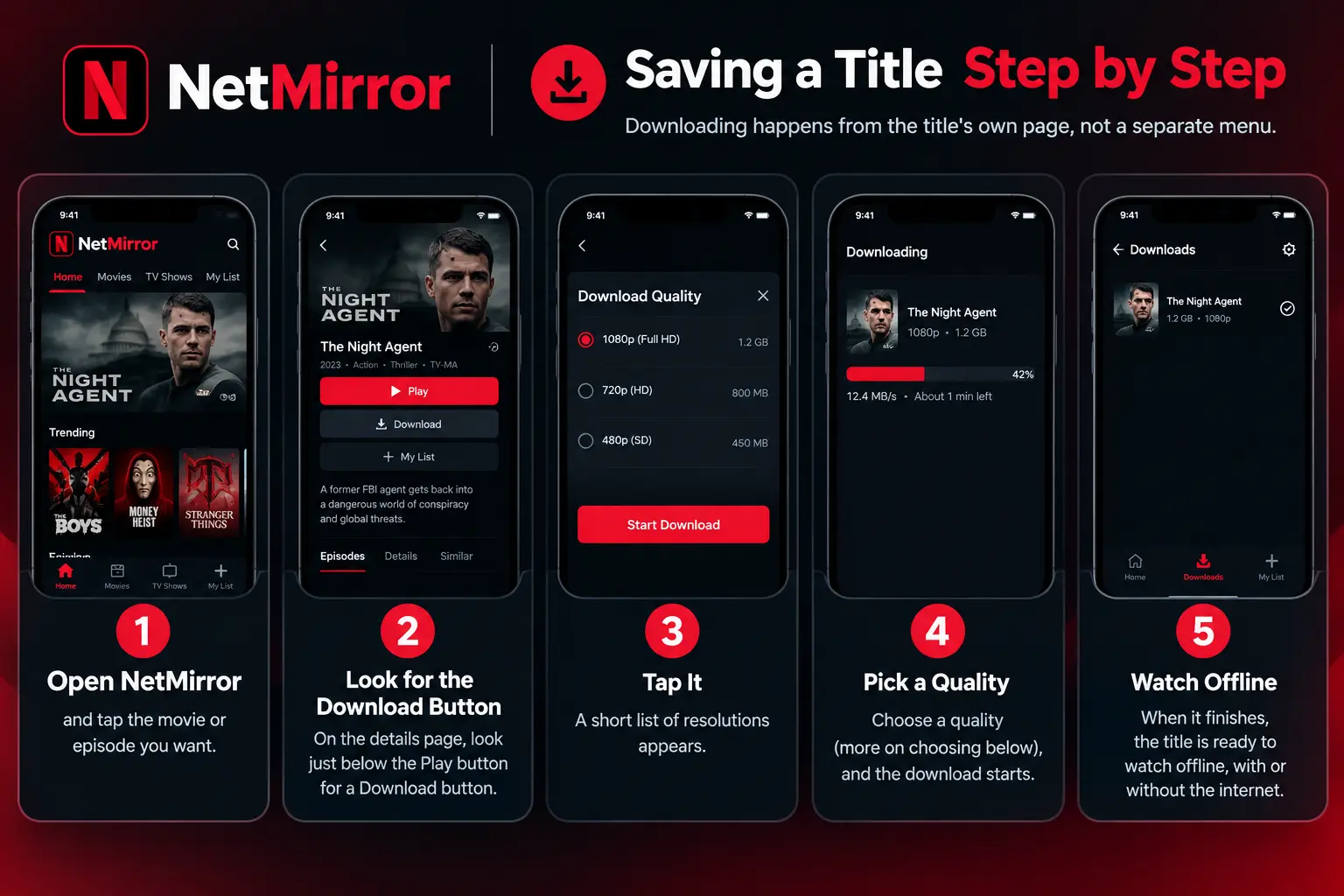
Saving a Title Step by Step
Downloading happens from the title’s own page, not a separate menu.
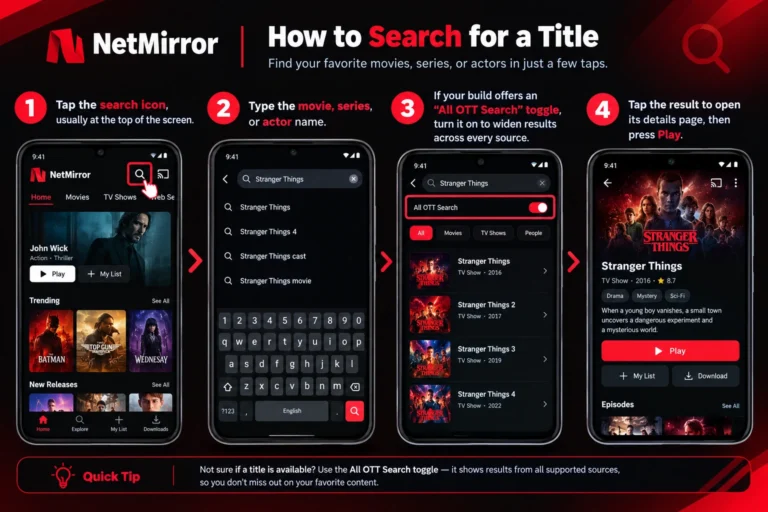
- Open NetMirror and tap the movie or episode you want.
- On the details page, look just below the Play button for a Download button.
- Tap it. A short list of resolutions appears.
- Pick a quality (more on choosing below), and the download starts.
- When it finishes, the title is ready to watch offline, with or without the internet.
For a series, you download episode by episode, which lets you grab only the ones you actually plan to watch rather than a whole season at once.
Choosing the Right Resolution
The quality you pick is a trade-off between how sharp the video looks and how much space and mobile data it uses. Higher resolution means a higher bitrate and a bigger file.
- Lower (around 360p to 480p): Small files, easy on a nearly full phone, fine for a small screen on the move.
- Standard (720p): The best all-round choice for most phones, a clear picture without a huge file.
- High (1080p Full HD): Sharpest, but each movie can be several times larger, so use it only with plenty of free internal storage.
If you are downloading over mobile data rather than Wi-Fi, a lower resolution also saves a large chunk of your data allowance.
Where Your Downloads Live
Saved titles stay inside the app so they are easy to find and manage. Look for a Downloads or My Downloads section, usually reached from the home screen or the menu. From there you can play a title offline or delete it once watched to free up space. Because the files sit in the app’s own storage rather than your gallery, keeping this list tidy is the simplest way to stop downloads from quietly filling your phone.
If you need an older build, you can check our NetMirror Old Version page for previous releases and version details.
Storage Planning at a Glance
| Resolution | Rough size per movie | Best for |
|---|---|---|
| 480p | Smallest | Old or low-storage phones |
| 720p | Moderate | Everyday phone viewing |
| 1080p | Largest | Tablets, big screens, spare storage |
Treat the sizes as a guide, since the exact figure depends on the film’s length and bitrate.
Watch a Offline download movies on netmirror
Once a title is saved, turn on airplane mode to test it. Open the Downloads section, tap the title, and it plays from local storage with no buffering and no connection needed. That smooth, gap-free playback where streaming would stutter is the whole point of downloading in the first place.
Smart Habits to Save Storage and Data
- Download on Wi-Fi, watch on the go. Grab titles at home so you never spend mobile data on the file.
- Delete after watching. A finished movie is just taking up room.
- Match quality to the screen. A phone rarely needs 1080p, so standard quality often looks identical while saving space.
- Grab a few, not everything. Download the trip’s worth, not the whole library, so your storage stays healthy.
- Use a Data Saver. If your build offers a data-saver toggle, it caps download quality automatically on mobile networks.
Fixing a Missing Download Button
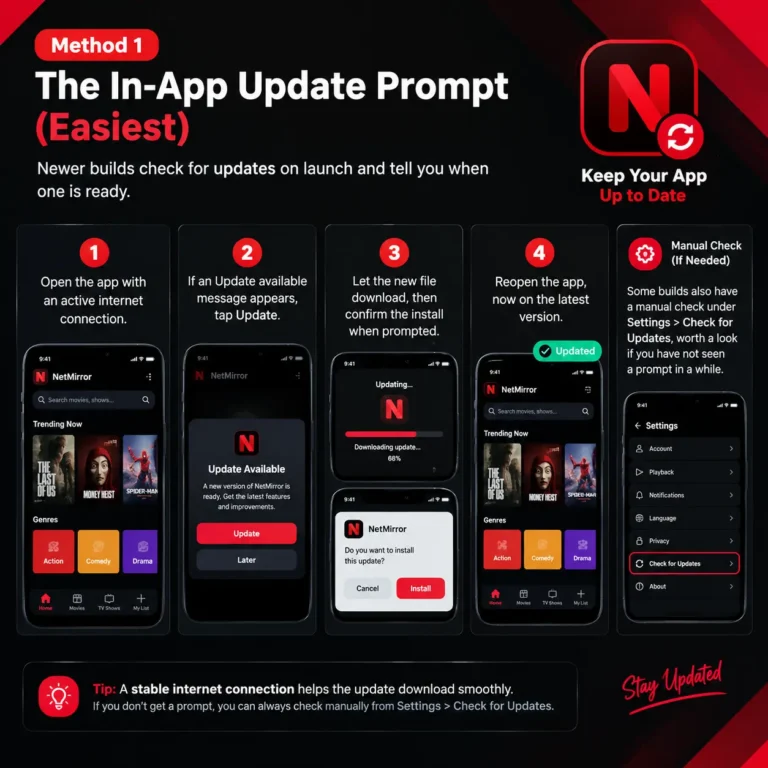
If there is no Download button below Play, the usual cause is a build that predates the feature. Offline downloads arrived in later versions, so an older APK simply will not show the option, and updating to the current version restores it. If the button is there but the download fails, check that you have enough free storage and a stable connection, then try again. A download that stalls partway is almost always a dropped connection, so restart it on Wi-Fi.
Managing Your Downloads Over Time
Download movies on netmirror can quickly use up your phone’s storage. Delete watched titles from the Downloads section and regularly remove files you no longer need. If your device supports an SD card, you may also be able to save downloads there to free up internal storage. Before a trip, clear old downloads so there is enough space for the titles you want to watch.
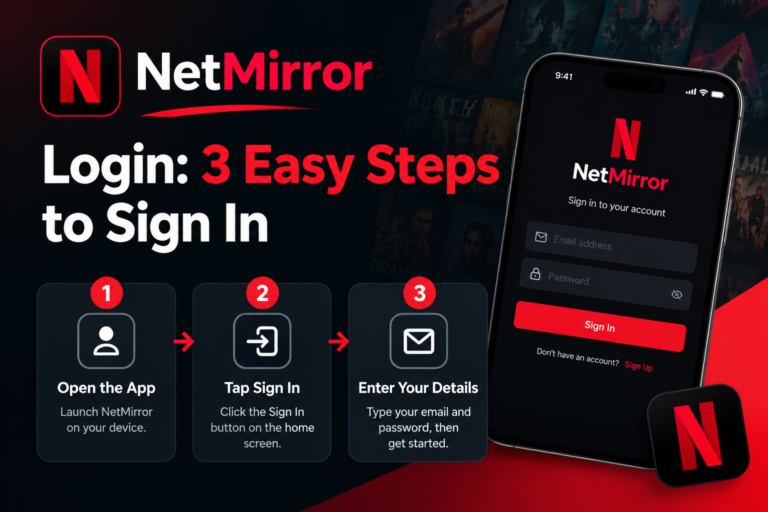
Having trouble signing in? Follow our NetMirror Login guide for a simple login walkthrough.
Final Word
NetMirror’s offline downloads live in the player: open a title, tap Download below Play, pick a quality that fits your storage, and watch it anywhere with no signal. Save on Wi-Fi, choose standard quality for most phones, and clear finished titles to keep space free. If the button is missing, a quick update usually brings it back. This article is for information only, and the content you download remains subject to local laws and licensing.
Frequently Asked Questions
Where is the download button in NetMirror?
On the title’s details page, just below the Play button. Tap it and choose a resolution.
Can I download a whole series at once?
Downloads are per episode, so you save the specific episodes you want rather than a full season in one tap.
Do download movies on netmirror expire?
They stay on your device until you delete them or remove the app. Manage them from the Downloads section.
Why can’t I download anything?
Either your build is too old to have the feature, or your device is low on storage. Update the app and free up space.
Can I move downloads to an SD card?
This depends on your build and phone. If the option exists, it is in the app’s settings or your phone’s storage settings for the app.
Do downloaded files play in my gallery app?
No. They stay inside NetMirror’s own storage and play from the Downloads section, not your phone’s default video gallery.